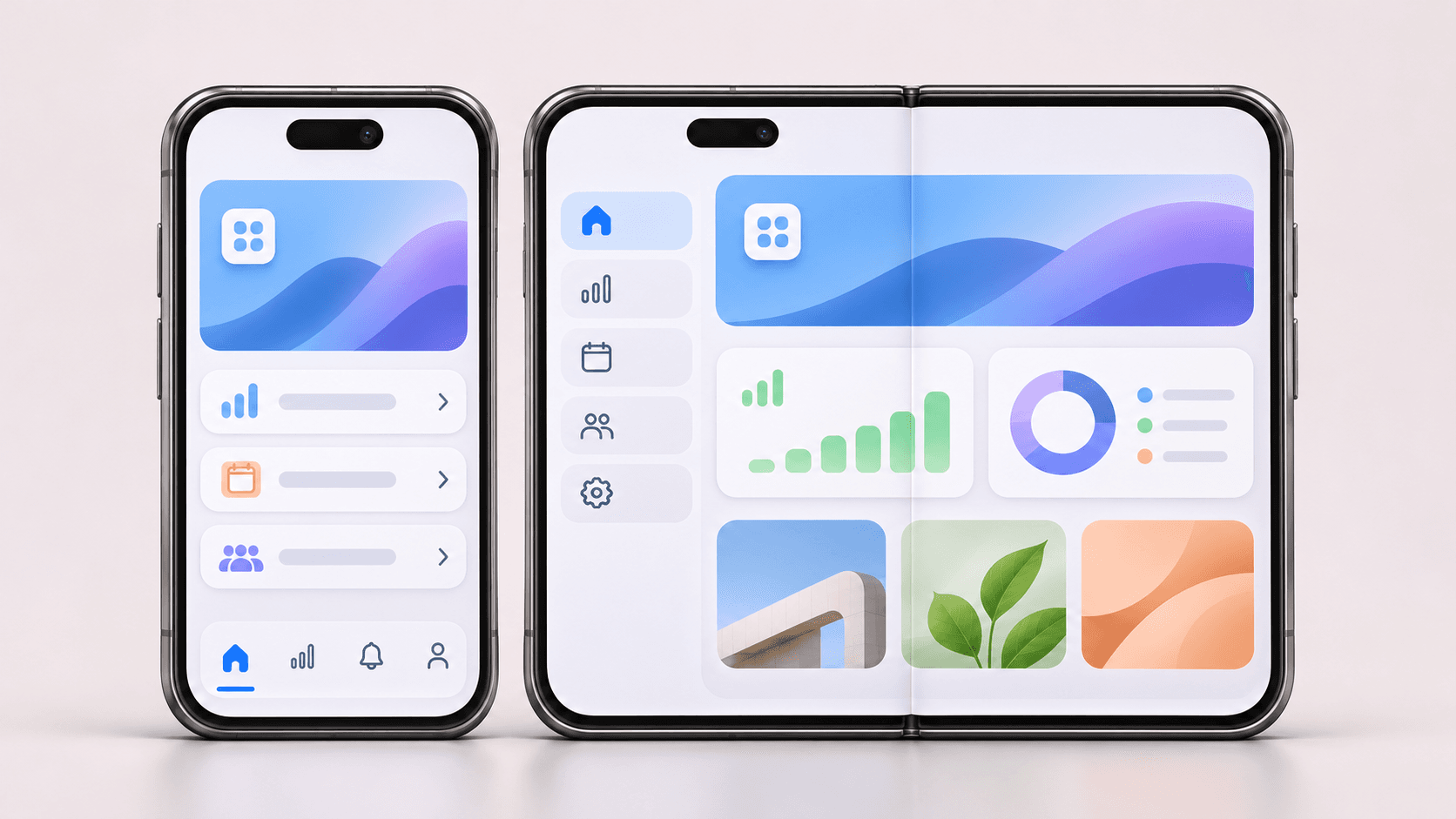
How to Update Your App for iPhone Duo : A Practical Guide for Businesses
Learn how to update your app for iPhone Duo with practical guidance on adaptive layouts, navigation, testing, and a reliable iOS release.
Updating an app for iPhone Duo starts with three priorities: making layouts adaptable, keeping navigation accessible, and preserving customer progress as the device opens and closes.
Apple’s foldable iPhone introduces an outer display and a larger inner display, giving customers more ways to interact with mobile apps. For businesses, that creates an opportunity to improve how people browse, purchase, communicate, and complete everyday tasks. Explore iPhone Duo’s design.
A successful update begins with an assessment of your existing product. Your mobile app development team should identify compatibility issues, protect important customer journeys, and introduce additional features where they provide clear value.
1. Start With an iPhone Duo App Compatibility Audit
Before estimating development work, establish how your current app behaves on the new device.
Focus on the actions that matter most to your business. For an ecommerce app, that may mean searching products, managing a cart, and completing checkout. For a service business, it may mean booking appointments, uploading documents, or messaging a representative.
Your initial audit should cover:
The app’s current build tools, frameworks, and dependencies.
Screens with fixed dimensions or heavily customized navigation.
Forms, payments, authentication, and third-party integrations.
Images, video, maps, and other content that depends on available space.
Existing crash reports, usability complaints, and performance concerns.
Record each issue with its customer impact and a clear description of the expected behavior. “The payment button becomes inaccessible after opening the device” gives your team a specific problem to resolve.
This assessment should produce a prioritized update plan and a more reliable basis for budgeting.
2. Update Your iOS Build and Review Dependencies
The software development kit used to build your app affects its presentation on iPhone Duo.
Apple explains that apps built with the iOS 26 SDK or earlier can run on the device, but use a more limited presentation. The iOS 27 SDK enables dynamic resizing and greater use of the inner display. Building with the iOS 27.1 SDK or later enables the full-display experience and vertical system bars where appropriate. See Apple’s preparation guide.
Your development team should review the build configuration alongside the app’s dependencies. Include payment libraries, analytics tools, authentication services, and custom components in that review.
If your app uses React Native, Flutter, or another cross-platform framework, include its iOS dependencies and native integrations in the compatibility assessment.
Rebuilding is an early validation step. Allow time to inspect the resulting interface and resolve problems before preparing the release.
3. Make App Layouts Respond to Available Space
An iPhone Duo app needs to adapt as its available space changes during use.
Apple recommends building around size classes and flexible layouts. The outer display uses a compact-width layout, while the inner display supports a regular-width layout. Standard components and support for resizing provide a foundation for adapting across device positions. Read Apple’s design guidance.
Ask your team to review whether:
Content responds to the current view or window size.
Text remains readable as the layout expands or contracts.
Product cards, dashboards, and forms use additional space effectively.
Images and video retain their important content when their proportions change.
Layout decisions depend on available space instead of a list of device models.
Consider a booking app. A compact view might show available appointments in a single column. A wider view could present the appointment list alongside details for the selected service.
The underlying task should remain familiar as the presentation adapts.
4. Adapt Navigation and Keep Important Controls Accessible
Navigation deserves its own review because iPhone Duo can position system controls along the side of the display.
Apple’s standard navigation containers support this behavior, while custom bars and controls may need additional work. Toolbar items also need appropriate priorities so frequently used actions remain accessible when space becomes constrained. Learn how navigation adapts on iPhone Duo.
Review back buttons, search, account access, primary actions, and overflow menus. Check whether customers can still find and use them as the app changes size.
Your team should also account for safe areas, which protect important content from overlapping system controls or hardware-related regions. These insets can be asymmetric, so equal padding on every edge may produce an unsuitable layout. Review Apple’s layout recommendations.
For heavily customized interfaces, evaluate Apple’s reserved-region and arrangement tools to manage content around the hinge and cameras. Explore adaptive layout tools.
5. Preserve Customer Progress Across Display Changes
Opening or closing the device should allow customers to continue their current task.
Apple describes these transitions as changes to the app’s size and traits within the existing scene. The process remains running, and the system generally preserves text input, scroll position, and playback. See Apple’s developer guidance on continuity.
Even so, your team should verify the behavior of your own application.
Useful scenarios include:
Opening the device while completing a checkout form.
Closing it while composing an unsent message.
Resizing the app after selecting filters or adding products to a cart.
Changing the layout during video playback or an upload.
Watch for lost input, unexpected navigation changes, repeated requests, and controls obscured by the keyboard.
Include multitasking in the review. iPhone Duo supports two apps side by side, so customers may use your app while consulting messages, documents, or other information. Learn about multitasking on iPhone Duo.
6. Test Complete User Journeys, Accessibility, and Performance
A screenshot confirms how one screen looks at one moment. Release testing needs to establish whether customers can complete a task while the interface changes.
Apple introduced iPhone Duo development support and Device Hub simulation in Xcode 27.1. Use those capabilities to inspect the app across device positions and orientations. Read Apple’s development announcement.
Build your test plan around realistic journeys:
Fold or unfold during checkout: Entered information persists and payment controls remain accessible.
Use the app beside another app: Content, navigation, and forms remain usable in the narrower space.
Open the keyboard: The active field and relevant actions remain visible.
Browse media across layouts: Images retain useful framing and playback behaves as expected.
Include larger text sizes, VoiceOver, and sufficient contrast. Apple confirms that standard iOS accessibility practices continue to apply to iPhone Duo. Review Apple’s accessibility guidance.
Also measure launch time, scrolling, memory use, and responsiveness during your core workflows. Where possible, supplement simulator testing with physical-device testing and a focused beta through TestFlight.
7. Prepare the Release and Refresh App Store Assets
Once the update passes testing, prepare the release around the improvements customers will experience.
Capture screenshots from the tested app that demonstrate useful workflows on the inner and outer displays. Check Apple’s current specifications before preparing the final assets. View App Store screenshot specifications.
Release notes should describe practical benefits, such as improved layouts, more accessible navigation, or better browsing on the larger display.
After launch, monitor crashes, support requests, and completion rates for important actions. Compare results by device and app version where your analytics setup supports it.
Use those findings to guide follow-up work. A successful release should make it easier to identify the next improvement as customer usage grows.
How to Prioritize Your iPhone Duo Update
Organize the work around customer impact:
Resolve functional problems. Address crashes, inaccessible controls, lost input, and broken transactions first.
Improve usability. Refine navigation, spacing, media presentation, and accessibility.
Evaluate additional features. Consider richer layouts or device-specific interactions when they make an existing task easier.
Give each release a defined scope and measurable acceptance criteria. This helps your team estimate the work and keeps optional enhancements from delaying essential fixes.
Frequently Asked Questions
Will existing iPhone apps work on iPhone Duo?
Apple says existing apps can run on iPhone Duo. Their presentation depends partly on the SDK used to build them, so running successfully is only the starting point for assessing the experience. See Apple’s compatibility explanation.
Does updating an app require a complete redesign?
The scope depends on the existing app. Begin by testing its layouts, navigation, dependencies, and customer journeys. Use the findings to decide which screens need targeted adjustments and which would benefit from broader design work.
How much does an iPhone Duo app update cost?
A useful estimate requires a defined scope. Ask for a breakdown covering assessment, design changes, development, testing, deployment, and support. Custom interfaces and complex integrations should receive particular attention during estimation.
Key Takeaways
Start with a compatibility audit and prioritize important customer journeys.
Review build tools and dependencies alongside the interface.
Make layouts and navigation adapt to changing space.
Test transitions during real tasks, including forms and payments.
Validate accessibility and performance before release.
Use post-launch evidence to guide further improvements.
Conclusion
Preparing an app for iPhone Duo is an opportunity to improve its adaptability and everyday usability. Begin with the customer tasks your business depends on, resolve compatibility issues, and validate the experience across displays before adding further features.
Fortitude Development provides mobile app development services, including modernization, deployment, and ongoing maintenance.
Contact Fortitude Development to discuss your existing app and plan its next update.